
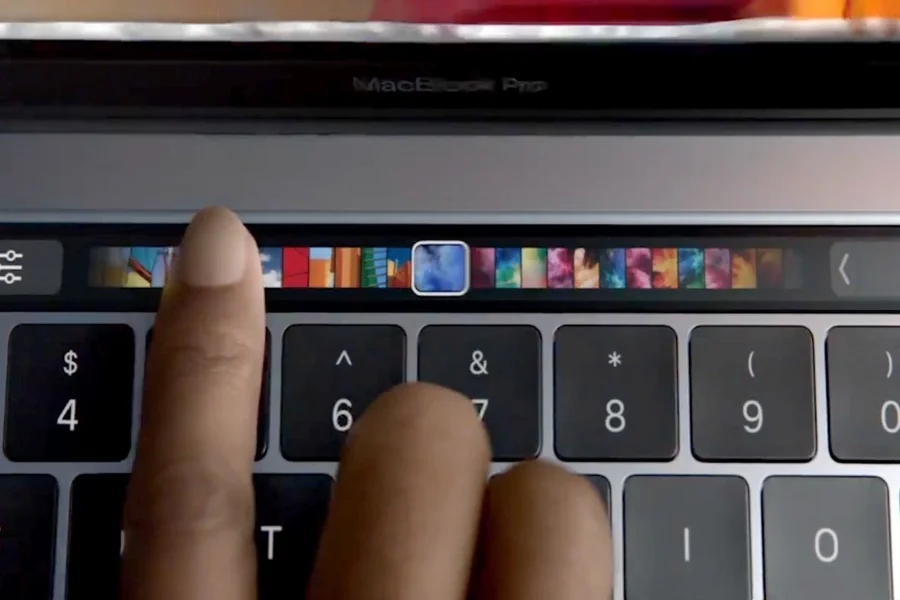
Apple’s Touch Bar MacBook models introduced a thin multi‑touch OLED strip at the top of the keyboard that replaced the function keys. The feature appeared on certain MacBook Pro models from 2016 and later and offered users a dynamic way to interact with apps and system controls. It represented Apple’s push toward a more adaptive input method while keeping their sleek laptop design.
How the Touch Bar Works
The Touch Bar sits above the keyboard where the traditional F‑keys used to be. It changes its content depending on which app you’re using. For example when you’re in a web browser it might show navigation buttons and when in a photo editing app it could display brush size, color, and sliders. The right end of the strip contains a Control Strip section for quick access to brightness, volume, Siri and media controls.
You can tap, slide and even press some buttons on the Touch Bar just like you use a button on the screen. It integrates with macOS so system functions and suggestions appear automatically. You can also customize what shows in the Control Strip by going into Keyboard settings and choosing which buttons to include. The ability to tailor it means you can set frequently used commands right at your fingertips.
Benefits of the Touch Bar MacBook
One of the key benefits of the Touch Bar is the increased flexibility it offers. Because the keys change with context you can have more useful controls depending on the app rather than static function keys. This can speed up workflows in creative apps, productivity tools and general system settings. The OLED display also allows for vibrant colour and touch responses.
Apple also used the Touch Bar to bring certain features into easier reach such as text suggestions, emoji picker and shortcuts for formatting. When typing you might see suggested words or emoji and you can tap them directly. This integration can make certain tasks smoother especially when you’re switching between apps often. For users who work in editing, design or multimedia the Touch Bar provided extra real‑estate for function controls without adding to the bulk of the keyboard.
Limitations and Criticisms
Despite its promise the Touch Bar MacBook feature also drew criticism. Many users found that traditional function keys still suited their workflow better, especially when it comes to gaming or using software that relies heavily on physical key feedback. Some felt the strip added complexity without enough benefit. Others noted that the support from third‑party apps was limited so the Touch Bar often defaulted to standard controls rather than offering deep app‑specific features.
There were also questions about durability and usability over time. Because the strip is a slim touchscreen component it might not stand up as well to heavy usage compared to physical keys. In scenarios where tactile feedback matters a lot the Touch Bar may feel less satisfying. Eventually Apple phased the Touch Bar out of its larger MacBook Pro models around 2021 in favour of a return to physical function keys. This move suggested that while the idea had merit it did not become a long‑term standard across Apple’s laptop lineup.
How to Use and Customize the Touch Bar
Using the Touch Bar is intuitive once you get used to it. It works with simple gestures — tap a button, slide a slider, expand the Control Strip for more options. When you hold the Fn or Globe key you can switch the Touch Bar to show full function keys if you prefer that layout. Customisation is done via System Settings > Keyboard where you can change the layout, show function keys for specific apps and update which buttons appear in the Control Strip.
In creative apps such as photo editors or audio workstations you’ll find special controls for tool selection, timeline navigation and other shortcuts. For everyday use you can map brightness and volume sliders or quick access to Siri. Experimenting with what the Touch Bar shows can help you align it with how you work and make it an asset rather than just a novelty.
Is the Touch Bar MacBook Worth It?
Whether the Touch Bar is worth it depends on your workflow and preferences. If you use software that takes advantage of on‑screen shortcuts and you like having a sleek, minimal keyboard design the Touch Bar can offer a unique experience. It adds functionality without adding physical keys and can adapt to many tasks.
On the other hand if your work involves frequent use of traditional keys, gaming or you prefer physical feedback and fixed keys the Touch Bar may not add much value. Some people found that returning to physical function keys felt more natural. Given Apple’s shift away from the Touch Bar in newer machines you also need to consider future software support and compatibility.
Final Thought
The Touch Bar MacBook represents a bold idea in laptop input design. It offered a dynamic and context‑aware alternative to static function keys and aimed to keep workflow as seamless as possible. While it carried unique benefits in customisation and app‑specific controls it also faced limitations in adoption and long‑term appeal. If your work aligns with what the Touch Bar provides it may enhance your experience. If you value simplicity and tactile consistency you might prefer a machine without it. In either case the Touch Bar MacBook remains a noteworthy chapter in laptop innovation and Apple’s design journey.
